<?xml version="1.0" encoding="utf-8"?>
<feed xmlns="http://www.w3.org/2005/Atom">
  <title>秋千AkiSenn生活笔记</title>
  <icon>https://www.gravatar.com/avatar/9c6951a30bcbdb4acaad1844f4d77bad</icon>
  <subtitle>科技技术生活</subtitle>
  <link href="https://akisenn.com/atom.xml" rel="self"/>
  
  <link href="https://akisenn.com/"/>
  <updated>2026-09-16T05:26:07.168Z</updated>
  <id>https://akisenn.com/</id>
  
  <author>
    <name>AkiSenn</name>
    <email>admin@akisenn.com</email>
  </author>
  
  <generator uri="https://hexo.io/">Hexo</generator>
  
  <entry>
    <title>Github Hexo Yelee搭建个性化博客</title>
    <link href="https://akisenn.com/post/55b0541c.html"/>
    <id>https://akisenn.com/post/55b0541c.html</id>
    <published>2022-01-20T05:23:24.000Z</published>
    <updated>2026-09-16T05:26:07.168Z</updated>
    
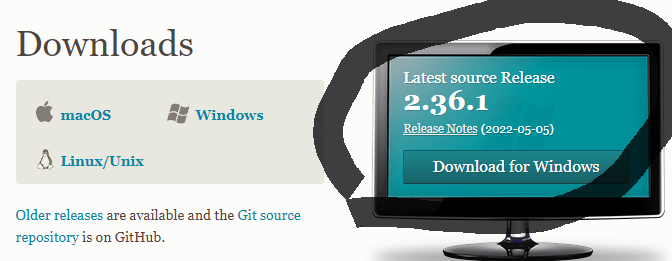
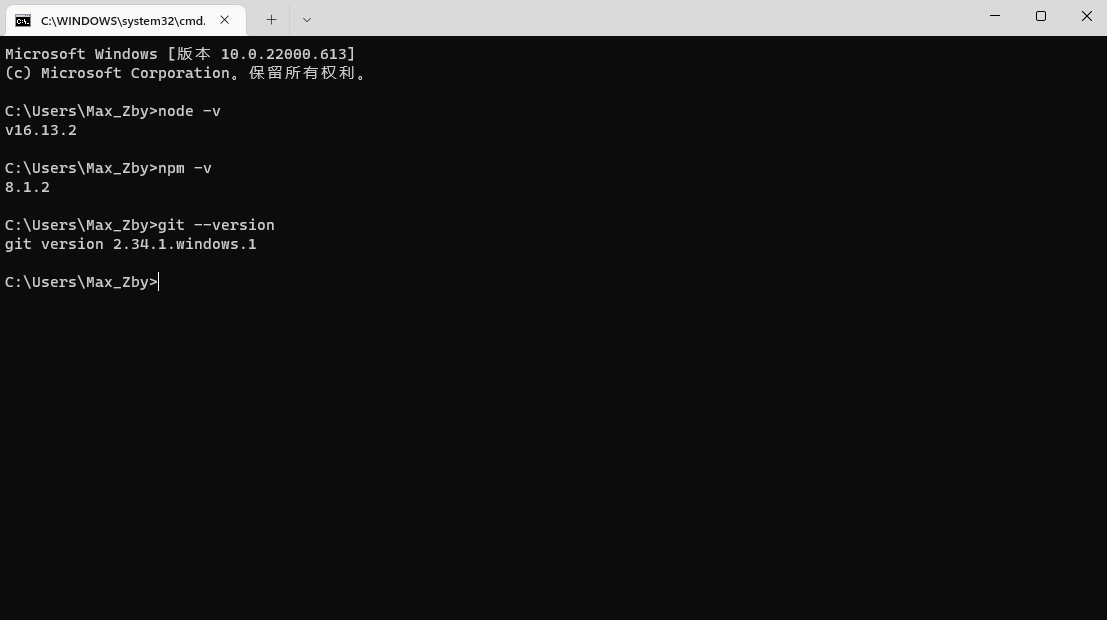
    <content type="html"><![CDATA[<h1 id="前言"><a href="#前言" class="headerlink" title="前言"></a>前言</h1><p>近几年Github Pages来搭建Hexo博客非常火，因为免服务器和完全免费，并且非常稳定得到大家的青睐，不过国内访问速度比较慢，后面会讲怎么解决。</p><p>虽然说搭建很麻烦，但是配置完，就可以安心写文章</p><p>首先</p><h2 id="Github-Pages和Hexo是什么？"><a href="#Github-Pages和Hexo是什么？" class="headerlink" title="Github Pages和Hexo是什么？"></a>Github Pages和Hexo是什么？</h2><h3 id="GitHub-Pages是什么？"><a href="#GitHub-Pages是什么？" class="headerlink" title="GitHub Pages是什么？"></a>GitHub Pages是什么？</h3><p><a href="https://docs.github.com/en/pages/getting-started-with-github-pages/about-github-pages">About GitHub Pages - GitHub Docs</a></p><p>Github Pages通俗来讲就是Github官方免费托管的静态网页，给开发者提供或者个人提供一个静态网站</p><h3 id="Hexo是啥？"><a href="#Hexo是啥？" class="headerlink" title="Hexo是啥？"></a>Hexo是啥？</h3><p><strong><a href="https://hexo.io/zh-cn/">Hexo</a>官网</strong></p><p>Hexo是基于Node.js的静态博客，依赖少。支持Markdown写文，开源免费</p><p><a href="https://github.com/hexojs/hexo">hexojs/hexo: A fast, simple &amp; powerful blog framework, powered by Node.js. (github.com)</a>Hexo GitHub开源项目链接</p><h3 id="国内访问慢怎么办？"><a href="#国内访问慢怎么办？" class="headerlink" title="国内访问慢怎么办？"></a>国内访问慢怎么办？</h3><p>GitHub Pages 在国内的访问速度确实不太理想。以前很多人用 Gitee Pages 来做镜像加速，不过 Gitee Pages 现在已经停止服务了。</p><p>目前比较靠谱的方案是用 <strong>Cloudflare Pages</strong>。把仓库连到 Cloudflare，它会自动从 GitHub 拉取代码部署，自带 CDN 加速，而且支持自定义域名。</p><h1 id="开始搭建"><a href="#开始搭建" class="headerlink" title="开始搭建"></a>开始搭建</h1><h2 id="搭建环境"><a href="#搭建环境" class="headerlink" title="搭建环境"></a>搭建环境</h2><p>因为Hexo 基于Node.js，在搭建过程中<strong>一定需要Node.js</strong>，通过npm和git来搭建博客 </p><p>Node.js官网：<a href="https://nodejs.org/zh-cn/">Node.js (nodejs.org)</a></p><p>Git官网：<a href="https://git-scm.com/downloads">Git - Downloads (git-scm.com)</a></p><p>Node.js推荐选择<strong>长期维护版</strong>（LTS版）<img src="https://s2.loli.net/2022/06/03/873zpvbwIs9GeWc.png" alt="Node.js download.png"></p><p>Git就直接选择对应的系统，我这演示的是Windows所以选Windows版本</p><p><img src="https://s2.loli.net/2022/06/03/9LihsIN8Z1oygKO.png" alt="Git downloads.png"></p><p>下载安装默认路径下一步下一步然后完成</p><p>验证安装是否成功：</p><p>按住键盘的Win键+R键打开运行，输入cmd</p><p><img src="https://s2.loli.net/2022/06/03/AGYOPJ93dK1LMhs.png" alt="运行.png"></p><p>依次输入<strong>node -v</strong>和<strong>npm -v</strong>和<strong>git –version</strong>，如果出现版本则代表安装成功</p><p><img src="https://s2.loli.net/2022/06/03/YwJ9qfPec7XmlKy.png" alt="cmd.png"></p><h2 id="安装-Hexo"><a href="#安装-Hexo" class="headerlink" title="安装 Hexo"></a>安装 Hexo</h2><p>工具准备好之后，就可以装 Hexo 了。</p><figure class="highlight bash"><table><tbody><tr><td class="gutter"><pre><span class="line">1</span><br></pre></td><td class="code"><pre><span class="line">npm install -g hexo-cli</span><br></pre></td></tr></tbody></table></figure><p>装完之后找个地方放博客，比如我放 E:\hexo：</p><figure class="highlight bash"><table><tbody><tr><td class="gutter"><pre><span class="line">1</span><br><span class="line">2</span><br><span class="line">3</span><br></pre></td><td class="code"><pre><span class="line">hexo init hexo</span><br><span class="line"><span class="built_in">cd</span> hexo</span><br><span class="line">npm install</span><br></pre></td></tr></tbody></table></figure><p>这些命令会生成博客的基本目录结构：</p><figure class="highlight plaintext"><table><tbody><tr><td class="gutter"><pre><span class="line">1</span><br><span class="line">2</span><br><span class="line">3</span><br><span class="line">4</span><br><span class="line">5</span><br><span class="line">6</span><br></pre></td><td class="code"><pre><span class="line">├── _config.yml        # 博客配置文件</span><br><span class="line">├── package.json</span><br><span class="line">├── scaffolds/         # 文章模板</span><br><span class="line">├── source/            # 放你的文章</span><br><span class="line">│   └── _posts/</span><br><span class="line">└── themes/            # 主题</span><br></pre></td></tr></tbody></table></figure><p>先本地跑起来看看效果：</p><figure class="highlight bash"><table><tbody><tr><td class="gutter"><pre><span class="line">1</span><br><span class="line">2</span><br><span class="line">3</span><br></pre></td><td class="code"><pre><span class="line">hexo clean</span><br><span class="line">hexo generate</span><br><span class="line">hexo server</span><br></pre></td></tr></tbody></table></figure><p>浏览器打开 <a href="http://localhost:4000/">http://localhost:4000</a> ，看到 Hello World 页面就是成功了。</p><h2 id="换个喜欢的主题"><a href="#换个喜欢的主题" class="headerlink" title="换个喜欢的主题"></a>换个喜欢的主题</h2><p>Hexo 默认的 landscape 主题比较朴素，可以去<a href="https://hexo.io/themes/">官方主题市场</a>逛逛。</p><p>我个人用的是 <strong>Yelee</strong> 主题，风格比较简洁：</p><figure class="highlight bash"><table><tbody><tr><td class="gutter"><pre><span class="line">1</span><br></pre></td><td class="code"><pre><span class="line">git <span class="built_in">clone</span> https://github.com/MOxFIVE/hexo-theme-yelee.git themes/yelee</span><br></pre></td></tr></tbody></table></figure><p>然后在 _config.yml 里改一下：</p><figure class="highlight yaml"><table><tbody><tr><td class="gutter"><pre><span class="line">1</span><br></pre></td><td class="code"><pre><span class="line"><span class="attr">theme:</span> <span class="string">yelee</span></span><br></pre></td></tr></tbody></table></figure><p>每个主题都有自己的配置项，具体看主题的文档就行。</p><h2 id="写文章"><a href="#写文章" class="headerlink" title="写文章"></a>写文章</h2><p>Hexo 新建文章：</p><figure class="highlight bash"><table><tbody><tr><td class="gutter"><pre><span class="line">1</span><br></pre></td><td class="code"><pre><span class="line">hexo new <span class="string">"文章标题"</span></span><br></pre></td></tr></tbody></table></figure><p>这会在 source/_posts/ 下生成一个 Markdown 文件，头部长这样：</p><figure class="highlight yaml"><table><tbody><tr><td class="gutter"><pre><span class="line">1</span><br><span class="line">2</span><br><span class="line">3</span><br><span class="line">4</span><br><span class="line">5</span><br></pre></td><td class="code"><pre><span class="line"><span class="meta">---</span></span><br><span class="line"><span class="attr">title:</span> <span class="string">文章标题</span></span><br><span class="line"><span class="attr">date:</span> <span class="number">2022-01-20 13:23:24</span></span><br><span class="line"><span class="attr">tags:</span></span><br><span class="line"><span class="meta">---</span></span><br></pre></td></tr></tbody></table></figure><p>在 — 下面直接写 Markdown 内容就行。写完了可以 hexo s 本地预览。</p><h2 id="部署到-GitHub-Pages"><a href="#部署到-GitHub-Pages" class="headerlink" title="部署到 GitHub Pages"></a>部署到 GitHub Pages</h2><p>先在 GitHub 上建一个仓库，名字必须是 &lt;你的用户名&gt;.github.io。</p><p>然后安装部署插件：</p><figure class="highlight bash"><table><tbody><tr><td class="gutter"><pre><span class="line">1</span><br></pre></td><td class="code"><pre><span class="line">npm install hexo-deployer-git --save</span><br></pre></td></tr></tbody></table></figure><p>打开 _config.yml，找到 deploy 配置：</p><figure class="highlight yaml"><table><tbody><tr><td class="gutter"><pre><span class="line">1</span><br><span class="line">2</span><br><span class="line">3</span><br><span class="line">4</span><br></pre></td><td class="code"><pre><span class="line"><span class="attr">deploy:</span></span><br><span class="line">  <span class="attr">type:</span> <span class="string">git</span></span><br><span class="line">  <span class="attr">repo:</span> <span class="string">https://github.com/你的用户名/你的用户名.github.io.git</span></span><br><span class="line">  <span class="attr">branch:</span> <span class="string">master</span></span><br></pre></td></tr></tbody></table></figure><p>然后一键部署：</p><figure class="highlight bash"><table><tbody><tr><td class="gutter"><pre><span class="line">1</span><br></pre></td><td class="code"><pre><span class="line">hexo clean &amp;&amp; hexo generate &amp;&amp; hexo deploy</span><br></pre></td></tr></tbody></table></figure><p>等几分钟，访问 https://你的用户名.github.io 就能看到了。</p><h2 id="绑定自己的域名"><a href="#绑定自己的域名" class="headerlink" title="绑定自己的域名"></a>绑定自己的域名</h2><p>不想用 xxx.github.io 这种地址的话，可以买个域名绑上去。</p><p>在 source/ 目录下新建一个 CNAME 文件，里面写你的域名，重新部署一次就可以了。</p><h2 id="国内加速方案"><a href="#国内加速方案" class="headerlink" title="国内加速方案"></a>国内加速方案</h2><p>开头说过国内访问 GitHub Pages 比较慢。现在推荐用 <strong>Cloudflare Pages</strong> 来解决。</p><p>配置很简单，把仓库连到 Cloudflare Pages，选择 master 分支，构建命令和输出目录都留空（因为 master 分支已经是编译好的静态文件），然后绑定自定义域名就行。Cloudflare 会自动处理 SSL 和 CDN 加速。</p><h2 id="写在最后"><a href="#写在最后" class="headerlink" title="写在最后"></a>写在最后</h2><p>博客搭好只是第一步，后面坚持写才是关键。环境配一次就不用再动了，剩下的就是安心写文章。</p>]]></content>


    <summary type="html">&lt;h1 id=&quot;前言&quot;&gt;&lt;a href=&quot;#前言&quot; class=&quot;headerlink&quot; title=&quot;前言&quot;&gt;&lt;/a&gt;前言&lt;/h1&gt;&lt;p&gt;近几年Github Pages来搭建Hexo博客非常火，因为免服务器和完全免费，并且非常稳定得到大家的青睐，不过国内访问速度比较慢，后面会讲</summary>


    <category term="GitHub" scheme="https://akisenn.com/tags/GitHub/"/>
    
    <category term="Pages" scheme="https://akisenn.com/tags/Pages/"/>
    
    <category term="Gitee" scheme="https://akisenn.com/tags/Gitee/"/>
    
    <category term="网站" scheme="https://akisenn.com/tags/%E7%BD%91%E7%AB%99/"/>
    
    <category term="Yelee" scheme="https://akisenn.com/tags/Yelee/"/>
    
    <category term="HexoThemes" scheme="https://akisenn.com/tags/HexoThemes/"/>
    
    <category term="Hexo" scheme="https://akisenn.com/tags/Hexo/"/>
    
  </entry>
  
  <entry>
    <title>重新修建网站</title>
    <link href="https://akisenn.com/post/4c6caf67.html"/>
    <id>https://akisenn.com/post/4c6caf67.html</id>
    <published>2022-01-18T11:08:43.000Z</published>
    <updated>2026-09-16T05:26:07.169Z</updated>
    
    <content type="html"><![CDATA[<h1 id="网站重新修建"><a href="#网站重新修建" class="headerlink" title="网站重新修建"></a>网站重新修建</h1><p><strong>原因</strong></p><p>网站之前遗弃以旧，主题作者也没有再次更新和本人学业问题</p><p>现在重新修建，有时间定期更新</p><p>网站还是原来的味道</p><p>根据yelee主题添加网易云，修复github图标错误</p>]]></content>


    <summary type="html">&lt;h1 id=&quot;网站重新修建&quot;&gt;&lt;a href=&quot;#网站重新修建&quot; class=&quot;headerlink&quot; title=&quot;网站重新修建&quot;&gt;&lt;/a&gt;网站重新修建&lt;/h1&gt;&lt;p&gt;&lt;strong&gt;原因&lt;/strong&gt;&lt;/p&gt;
&lt;p&gt;网站之前遗弃以旧，主题作者也没有再次更新和本人学业问题</summary>


    <category term="GitHub" scheme="https://akisenn.com/tags/GitHub/"/>
    
    <category term="Pages" scheme="https://akisenn.com/tags/Pages/"/>
    
    <category term="Gitee" scheme="https://akisenn.com/tags/Gitee/"/>
    
    <category term="网站" scheme="https://akisenn.com/tags/%E7%BD%91%E7%AB%99/"/>
    
  </entry>
  
  <entry>
    <title>GitHub Pages and Cloudflare Pages</title>
    <link href="https://akisenn.com/post/bbbce974.html"/>
    <id>https://akisenn.com/post/bbbce974.html</id>
    <published>2020-08-27T09:53:22.000Z</published>
    <updated>2026-07-25T12:28:15.000Z</updated>
    
    <content type="html"><![CDATA[<h2 id="网站速度访问"><a href="#网站速度访问" class="headerlink" title="网站速度访问"></a>网站速度访问</h2><h3 id="国内"><a href="#国内" class="headerlink" title="国内"></a>国内</h3><p><code>bash 国内访问 https://akisenn.com 现在走 Cloudflare Pages，国内速度比以前好多了 自带 CDN 加速，不用折腾</code></p><p>国内优点：<br>访问速度还行 免服务器 自动 CDN 稳定<br>缺点：<br>偶尔会慢一点，但比以前好</p><h3 id="海外"><a href="#海外" class="headerlink" title="海外"></a>海外</h3><p><code>bash 海外也走 https://akisenn.com Cloudflare Pages 全球节点都覆盖了 国内国外一个地址，省心</code></p><p>海外优点：<br>速度好 免服务器 自动部署<br>部署方式：<br>写完文章 hexo deploy 推到 master，Cloudflare 自动同步，不用手动操作</p><h2 id="2020-8-27-原文"><a href="#2020-8-27-原文" class="headerlink" title="2020/8/27 原文"></a>2020/8/27 原文</h2><p>第一次用 hexo 发文章，不是很完美。以前国内走 Gitee Pages，现在 Gitee Pages 停了，换成了 Cloudflare Pages，反倒更省事了——不用两个地址分开维护，一个域名全搞定。</p><h2 id="2022-1-19-12-20"><a href="#2022-1-19-12-20" class="headerlink" title="2022/1/19 12:20"></a>2022/1/19 12:20</h2><p>网站重新修建完成，时隔2年<br>差点还忘记修建，陈旧的配置和停更以旧的主题</p>]]></content>


    <summary type="html">&lt;h2 id=&quot;网站速度访问&quot;&gt;&lt;a href=&quot;#网站速度访问&quot; class=&quot;headerlink&quot; title=&quot;网站速度访问&quot;&gt;&lt;/a&gt;网站速度访问&lt;/h2&gt;&lt;h3 id=&quot;国内&quot;&gt;&lt;a href=&quot;#国内&quot; class=&quot;headerlink&quot; title=&quot;国内&quot;&gt;&lt;</summary>


    <category term="GitHub" scheme="https://akisenn.com/tags/GitHub/"/>
    
    <category term="Pages" scheme="https://akisenn.com/tags/Pages/"/>
    
    <category term="Cloudflare" scheme="https://akisenn.com/tags/Cloudflare/"/>
    
  </entry>
  
</feed>